Coolest Notepad Tricks and Hacks for Your PC
1. Make Notepad your Personal Diary
Do you want a diary in your computer? Notepad can be turned into a personal logbook by simple steps. Everything you type will be saved with the particular date and time.

Follow these steps to make notepad your diary:
1. Open Notepad
2. In the first line, type “.LOG”
3. Save the file as “log.txt”
2. In the first line, type “.LOG”
3. Save the file as “log.txt”
2. Password-protected Folder using Notepad
You can protect the files and folders in your computer by using this Notepad trick. A password-protected folder is created using few lines of code and you can keep your important stuff safe.
Type the following code. Instead of “fossBytes” written in the code, type in the password of your wish.
@ECHO OFF
title Folder Private
if EXIST “Control Panel.{21EC2020-3AEA-1069-A2DD-08002B30309D}” goto UNLOCK
if NOT EXIST Private goto MDLOCKER
:CONFIRM
echo Are you sure you want to lock the folder(Y/N)
set/p “cho=>”
if %cho%==Y goto LOCK
if %cho%==y goto LOCK
if %cho%==n goto END
if %cho%==N goto END
echo Invalid choice.
goto CONFIRM
:LOCK
ren Private “Control Panel.{21EC2020-3AEA-1069-A2DD-08002B30309D}”
attrib +h +s “Control Panel.{21EC2020-3AEA-1069-A2DD-08002B30309D}”
echo Folder locked
goto End
:UNLOCK
echo Enter password to unlock folder
set/p “pass=>”
if NOT %pass%==VirtualVV goto FAIL
attrib -h -s “Control Panel.{21EC2020-3AEA-1069-A2DD-08002B30309D}”
ren “Control Panel.{21EC2020-3AEA-1069-A2DD-08002B30309D}” Private
echo Folder Unlocked successfully
goto End
:FAIL
echo Invalid password
goto end
:MDLOCKER
md Private
echo Private created successfully
goto End
:End
Save the file as private.bat and choose File type as All Files (*.*), you can change the password VirtualVV with the other words. Double click on the file private.bat. A Private folder will be created in which you can move the files and folders that you want to protect. Now, a password will be required to open this folder.
title Folder Private
if EXIST “Control Panel.{21EC2020-3AEA-1069-A2DD-08002B30309D}” goto UNLOCK
if NOT EXIST Private goto MDLOCKER
:CONFIRM
echo Are you sure you want to lock the folder(Y/N)
set/p “cho=>”
if %cho%==Y goto LOCK
if %cho%==y goto LOCK
if %cho%==n goto END
if %cho%==N goto END
echo Invalid choice.
goto CONFIRM
:LOCK
ren Private “Control Panel.{21EC2020-3AEA-1069-A2DD-08002B30309D}”
attrib +h +s “Control Panel.{21EC2020-3AEA-1069-A2DD-08002B30309D}”
echo Folder locked
goto End
:UNLOCK
echo Enter password to unlock folder
set/p “pass=>”
if NOT %pass%==VirtualVV goto FAIL
attrib -h -s “Control Panel.{21EC2020-3AEA-1069-A2DD-08002B30309D}”
ren “Control Panel.{21EC2020-3AEA-1069-A2DD-08002B30309D}” Private
echo Folder Unlocked successfully
goto End
:FAIL
echo Invalid password
goto end
:MDLOCKER
md Private
echo Private created successfully
goto End
:End
Save the file as private.bat and choose File type as All Files (*.*), you can change the password VirtualVV with the other words. Double click on the file private.bat. A Private folder will be created in which you can move the files and folders that you want to protect. Now, a password will be required to open this folder.
3. The Matrix Effect
‘Matrix’ movie fan? Create your own window of random strings of green digits displayed all over.

Type the following code, (You can find the saved file by performing a simple search in start menu).
@echo off
color 02
:start
echo %random% %random% %random% %random% %random% %random% %random% %random% %random% %random%
goto start
save the file as .bat, open the saved file and see the Matrix magic!
color 02
:start
echo %random% %random% %random% %random% %random% %random% %random% %random% %random% %random%
goto start
save the file as .bat, open the saved file and see the Matrix magic!
4. Shutdown your Computer with a Message
Don’t you find the process of shutting down too tedious? Open Start menu, Click on Turn Off button, Click Ok! Why not just double click an icon! Follow the steps and you can shut down your system by just double clicking on an icon. Also, a message of your choice will be displayed.

Open Notepad, type the following code and save the file with any name but with extension .bat
@echo off
msg * Computer will now shut down
shutdown -c “Sweet Dreams. Take care.” –s
msg * Computer will now shut down
shutdown -c “Sweet Dreams. Take care.” –s
5. Pop out the CD Drive continuously
Play a prank with your friends and make their computer’s CD drive open and close repeatedly.
Open Notepad, type the following code and save the file with extension .vbs Then open the file. It will make CD drive pop out continuously. To stop the process, open Windows Task Manager (Ctrl+Alt+Delete) and end wscript.vbsprocess.
Set oWMP = CreateObject(“WMPlayer.OCX.7?)
Set colCDROMs = oWMP.cdromCollection
do
if colCDROMs.Count >= 1 then
For i = 0 to colCDROMs.Count – 1
colCDROMs.Item(i).Eject
Next
For i = 0 to colCDROMs.Count – 1
colCDROMs.Item(i).Eject
Next
End If
wscript.sleep 5000
loop
Set colCDROMs = oWMP.cdromCollection
do
if colCDROMs.Count >= 1 then
For i = 0 to colCDROMs.Count – 1
colCDROMs.Item(i).Eject
Next
For i = 0 to colCDROMs.Count – 1
colCDROMs.Item(i).Eject
Next
End If
wscript.sleep 5000
loop
6. Text to Speech using Notepad
What if your computer speaks what you type! Follow these steps and Notepad will speak to you:
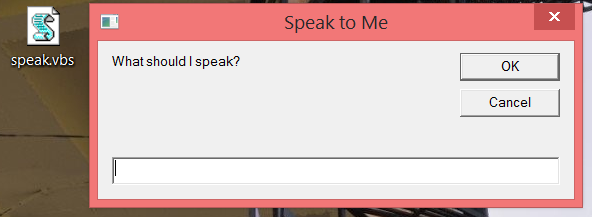
1. Open Notepad and type the following command.
Dim message, sapi
message=InputBox(“What should I speak?”,”Speak to me”)
Set sapi=CreateObject(“sapi.spvoice”)
sapi.Speak message
message=InputBox(“What should I speak?”,”Speak to me”)
Set sapi=CreateObject(“sapi.spvoice”)
sapi.Speak message
2. Save the file as speak.vbs
3. Open the file, type the sentence you want Notepad to speak and click OK.
3. Open the file, type the sentence you want Notepad to speak and click OK.
7. Toggle Capslock
You can make the Capslock key of your keyboard toggle repeatedly by just typing a simple code in the Notepad.
Type this code in Notepad and save the file as .vbs Open the saved file. See what happens on using Capslock key
Set wshShell =wscript.CreateObject(“WScript.Shell”)
do
wscript.sleep 100
wshshell.sendkeys “{CAPSLOCK}”
loop
do
wscript.sleep 100
wshshell.sendkeys “{CAPSLOCK}”
loop
8. Fake Windows Error Message
Type the following command in Notepad and save the file as error.vbs then Open the saved file and your fake error message will appear.

X=Msgbox(“Press OK and Windows will restart now.”,0+16,“There is a serious problem in your system”)
http://fossbytes.com/top-10-coolest-notepad-tricks-and-hacks-for-your-pc/


0 komentar:
Posting Komentar